
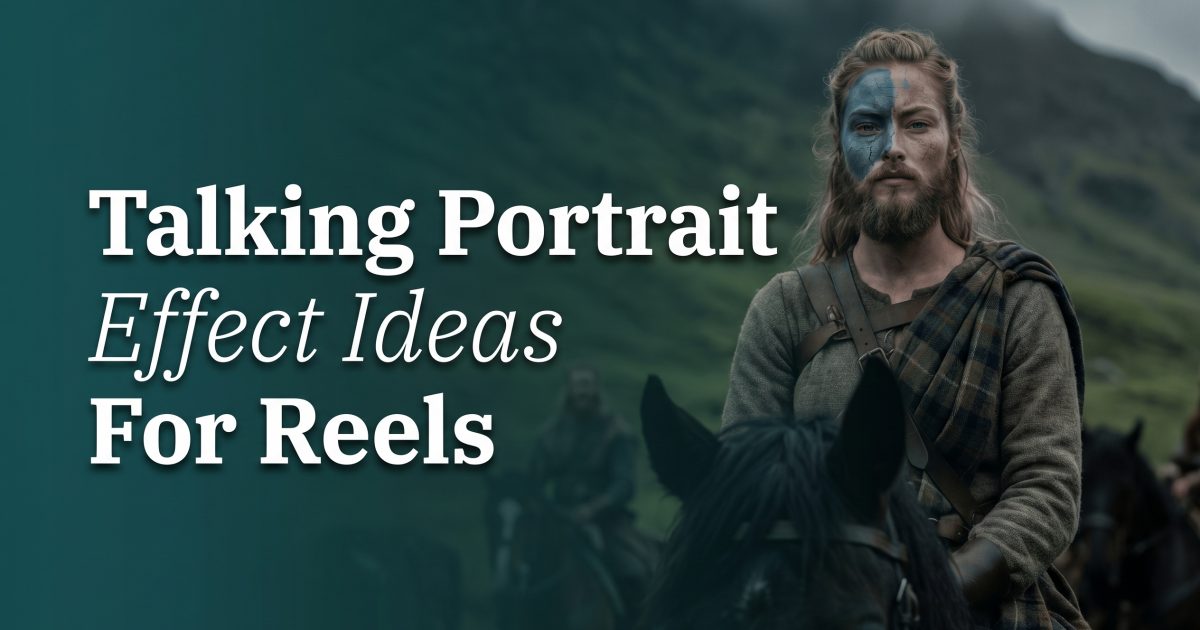
Talking portrait effects turn one clear selfie into a short Reel that feels like a scene, not another front-camera update. The voice can stay simple. The visual does the heavy lifting: a close, serious frame for a confession, a fantasy backdrop for a launch, or an open landscape for a milestone. Start with a portrait where the face is bright, centered, and looking toward the lens.
Talking portrait effects: 3 Reel ideas
Pick one mood before writing anything. A talking portrait works best when the words and the setting agree. A dramatic landscape needs a big statement. A close-up needs a line that sounds private. Keep the finished clip at 5 to 10 seconds, then use the caption to add the context viewers need.
1. Serious monologue
This look puts the face first. The background stays dark or quiet, the camera feels close, and the delivery lands like a secret. It suits story-time openers, a low-key announcement, a relatable thought, or a “wait for it” reveal. The point isn’t to sound intense for no reason. Give the line a clear turn: a problem, a realization, or a small win.
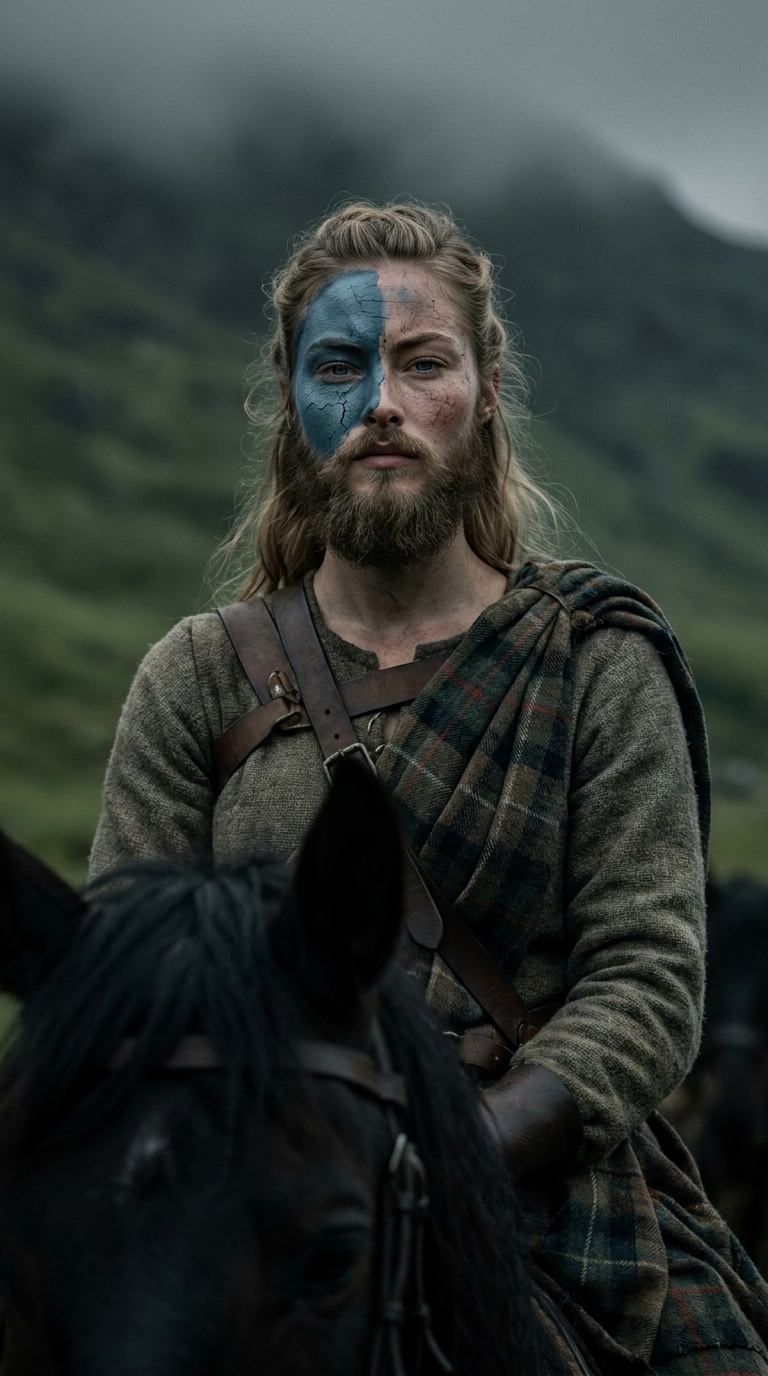
How to make it
- Choose a straight-on head-and-shoulders photo with even light and no sunglasses.
- Use a calm expression. A big smile can fight the mood.
- Write one sentence of 8 to 14 words. Put the surprising part at the end.
- Keep the setting restrained, then trim the Reel just after the last word.
Example prompt: “Close cinematic talking portrait, soft side light, dark blurred room, direct eye contact, quiet suspense.” Pair it with a script such as: “I almost deleted this, but it turned into my favorite post.”
Wear a plain top and skip busy patterns. A black, cream, navy, or muted red shirt keeps the face readable on a small screen. Add on-screen captions in the lower third, not across the mouth. This format is useful for creator updates, beauty before-and-afters, new project teases, and punchline-led comedy.
2. Hero speech
The hero speech takes an ordinary update and gives it trailer energy. Think wind, scale, a dramatic horizon, or a character-like setting. It works when the payoff is playful: announcing a group trip, introducing a new series, celebrating a goal, or turning a mundane errand into a mission. Keep the script confident, but make the joke or message easy to understand without sound.
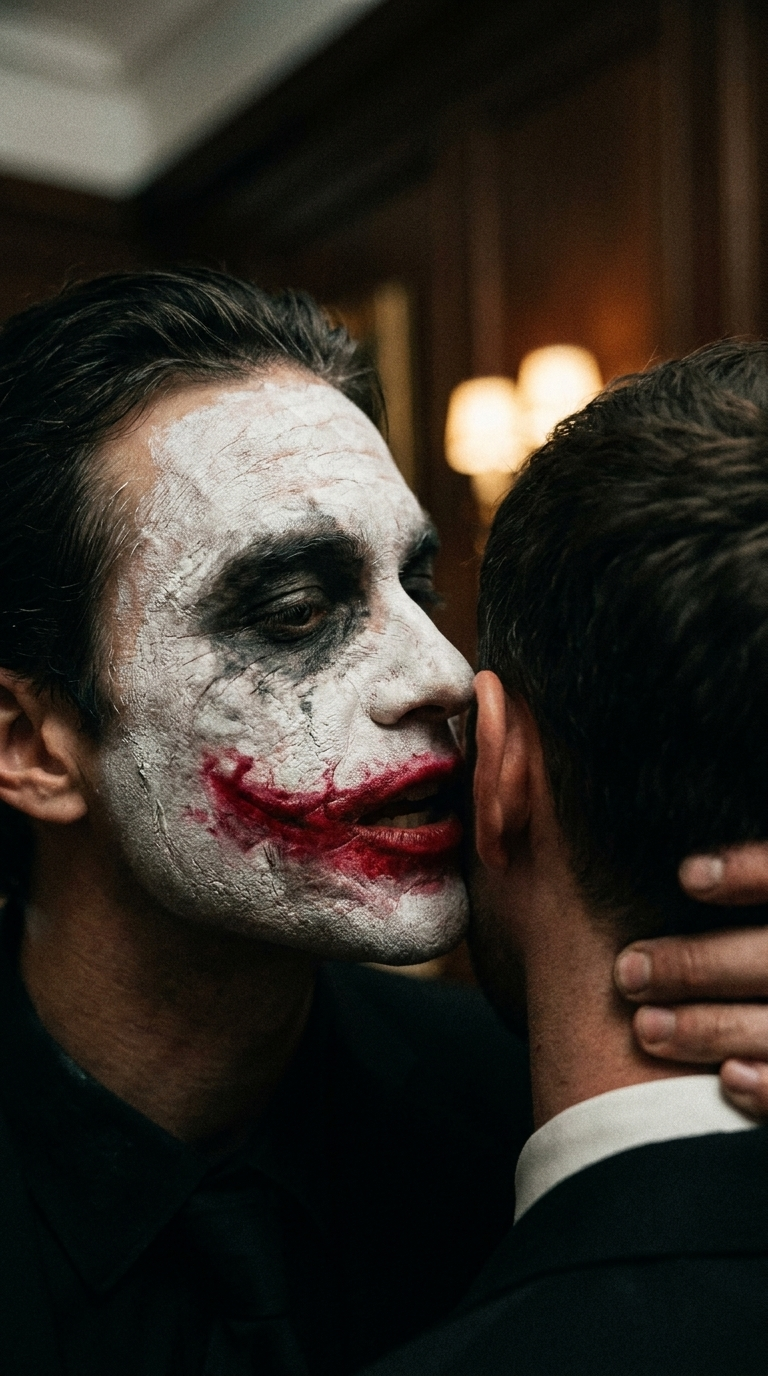
How to make it
- Start with a portrait that has a clean outline around the shoulders and hair.
- Choose a bold setting that matches the statement, such as a mountain pass, castle hall, or stormy shoreline.
- Write the line as a declaration, then end it with the actual news.
- Use a quick title card before the portrait if viewers need context.
Example prompt: “Vertical talking portrait as an adventurous film hero, golden storm clouds, wind moving hair, cinematic rim light, confident expression.” A fitting script: “The plan was one coffee. Now the whole weekend has a schedule.”
Production detail matters here. Keep the original photo sharp, with the chin and forehead fully visible. Avoid photos cropped too tightly or shot from below. Use a bold first frame and a short caption like “POV: the group chat finally made a plan.” For a cleaner Reel, match the cover image to the color of the effect and use one large caption font throughout.
3. Freedom shot
The freedom shot is the open-air version of a talking portrait. A wide landscape creates room around the face, so a personal win can feel bigger without turning into a speech. Use it for travel clips, graduation posts, a fitness milestone, moving-day updates, or the end of a hard week. The best version feels grateful and specific rather than generic.
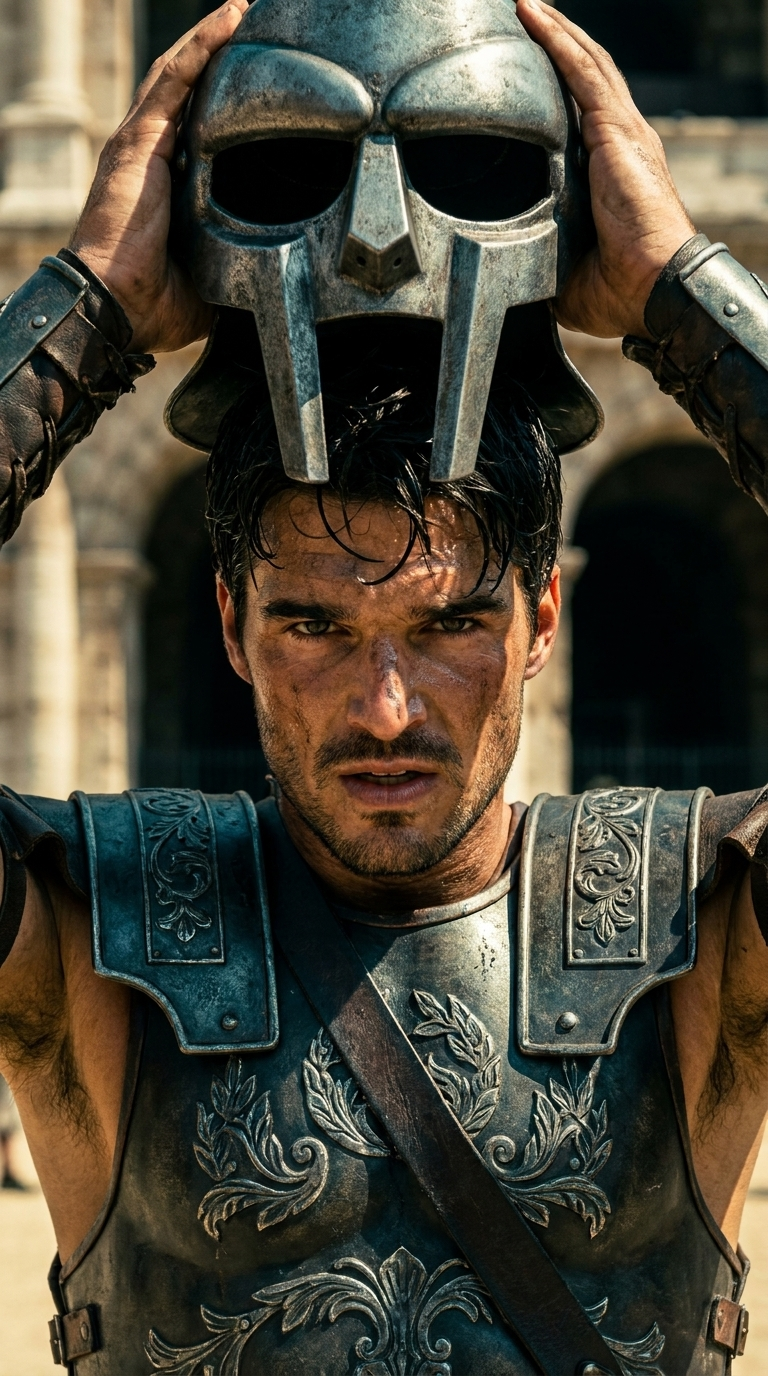
How to make it
- Pick a portrait with natural daylight, relaxed shoulders, and a little space above the head.
- Choose a location mood: cliff edge, sunlit field, coastline, train platform, or city rooftop.
- Say what changed in one plain sentence. Specific beats poetic.
- Let the last frame hold for half a second so the text can be read.
Example prompt: “Vertical cinematic talking portrait on a sunlit coastal cliff, warm wind, wide ocean behind, natural skin texture, hopeful mood.” Try: “Six months ago I was scared to start. Today I booked the trip.”
Use warm neutrals, denim, or a jacket that fits the outdoor story. Avoid a background-heavy selfie where trees or buildings cut through the face. For travel and lifestyle Reels, follow the portrait with one real phone clip from the day. That contrast makes the effect feel like an opener instead of the entire story.
Production tips that keep the effect believable
Record or write the line before choosing the effect. Read it aloud once. If it takes longer than one breath, cut it. Most talking portrait effects look strongest when the message has one idea. Start with the finished visual in the first second, then add captions for viewers watching quietly. Instagram’s own Reels guidance also makes clear that vertical video is built for mobile viewing, so keep faces and text away from the edges.
Export in a 9:16 frame and check the Reel at full-screen size before posting. The eyes should stay visible, captions should have contrast, and the last word shouldn’t get buried under interface buttons. Save two caption options: one that explains the moment and one that invites a reaction. For example, “Which version would you post?” works when testing several looks in a carousel or Story.
These talking portrait effects don’t need a long script or a perfect studio selfie. Give each visual a job, keep the message short, and let the effect set the mood.
Create this effect in Bloom AI
Recreate these effects on your own photos and videos – free to start.